

Microsoft Word is the world’s most used office software, and millions of small business owners turn to it when they first need a flyer. It makes sense — you already own it, you already know how to use it, and there are thousands of built-in templates to start from. For an internal event notice, a community bulletin board announcement, or a quick test concept, Word absolutely does the job.
But for any flyer that will represent your brand professionally — at a restaurant lobby, a retail counter, a trade show table, or in a direct mail campaign — Word’s limitations become very visible very quickly. This guide teaches you how to extract maximum quality from Word’s print toolset, and clearly identifies the quantity threshold where wholesale professional printing is the correct decision.
Drag the slider to test how your chosen font size will appear when physically printed on a flyer.
Step-by-Step: Create and Print a Flyer in Word
Open a Flyer Template
File → New → Search "Flyer" in the search bar. Microsoft's template library includes dozens of professionally designed starting points for events, promotions, and business announcements.
Configure Page Layout
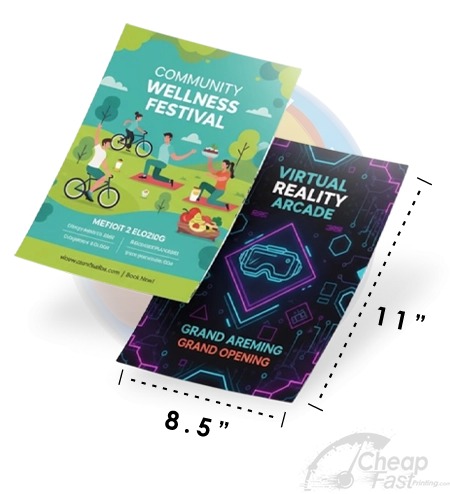
Layout → Size: Letter (8.5×11). Layout → Margins: Narrow or Custom. Reduce all margins to 0.25 inches minimum. For any professional print job, you'll need to remove standard 1-inch margins entirely.
Prevent Image Compression
Before inserting any images: File → Options → Advanced → Image Size and Quality → UN-CHECK "Compress images in file." This prevents Word from downsampling your images to screen resolution.
Export as High-Quality PDF
File → Export → Create PDF/XPS. Click Options, select "High quality print." This instructs Word to export at 300 DPI equivalent, making the file acceptable for most professional print services.
Upload for Professional Printing
Submit your Word-generated PDF to CheapFastPrinting. Our Free Design Review will check for any bleed, resolution, or color issues and fix them before manufacturing begins — at no charge.

Word's Critical Print Limitations
Microsoft Word was designed for documents — letters, reports, proposals — not for commercial print production. The following limitations become increasingly significant as your flyer ambitions grow:
- No native bleed support: Word cannot define a bleed zone, meaning every Word-designed flyer will have white edges after professional trimming unless our team adds bleed manually.
- RGB only: Word has no CMYK color mode. Colors you pick in Word's color picker are RGB values that may shift noticeably during professional CMYK ink printing.
- Limited typography control: Word lacks optical kerning, baseline grid, and ligature controls that professional design software applies automatically.
- Image placement imprecision: Pixel-perfect element alignment is significantly harder in Word than in design tools built for layout work.
When to Upgrade from Word to Professional Printing
Use Word for: internal notices, informal event announcements under 25 copies, and quick concept mockups. Upgrade to professional printing when: the flyer represents your brand publicly, quantity exceeds 50 units, distribution involves professional or retail settings, or the flyer needs premium paper, UV coating, or rigid cardstock that no home printer can provide.

Browse 6 Professional Word Flyer Format Upgrades