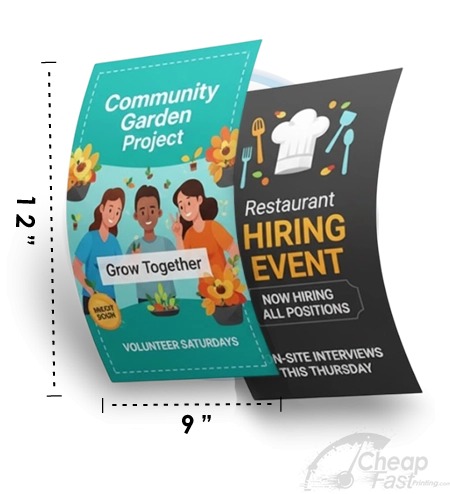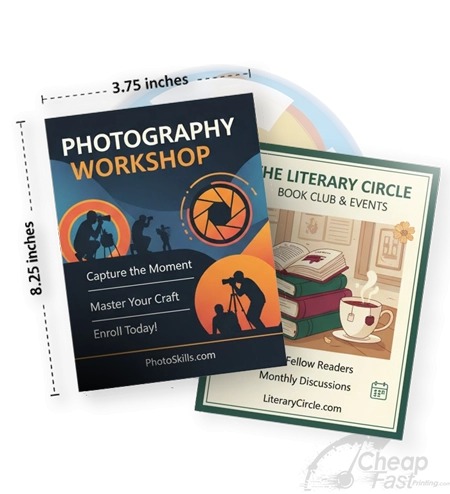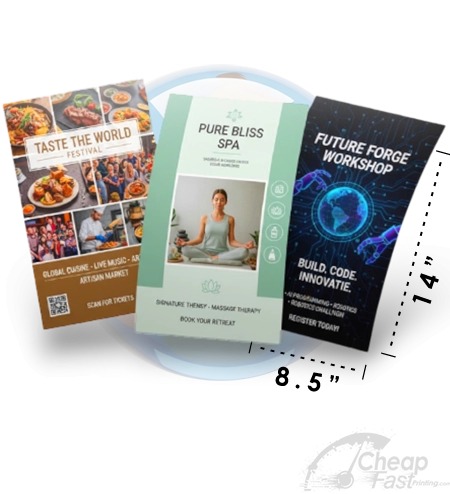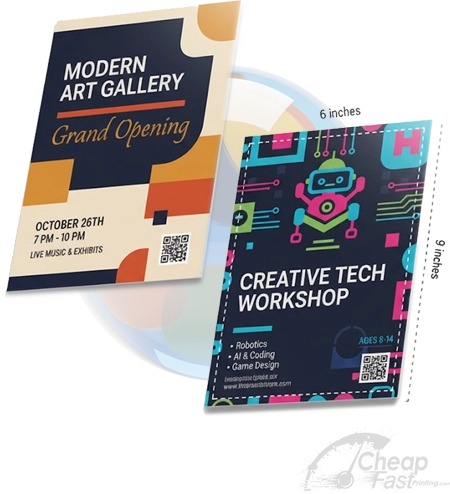


A “regular inkjet” can absolutely print flyers. The question is not whether it can print, but whether it can produce flyers that are readable, handleable, and consistent after drying and trimming.
Inkjet printing is especially sensitive to paper choice and drying time. If you use the right media type setting, choose flyer paper that behaves predictably, and give prints time to dry before stacking, you can get impressive results for small runs.
Inkjet flyers succeed when the reader can scan the QR and read the CTA without smudges, glare issues, or clipped content from incorrect margins.
What Regular Inkjet Printers Do Well
Inkjet is a good match for flyers when your output is text-friendly and your images are not overly demanding on smooth gradients. It can be especially effective for localized, frequently updated promotions.
Strength #1: crisp text when settings and paper match
Text readability is often better than people expect because inkjet can place fine ink patterns precisely. With 300 DPI at final size and the correct media type setting, your headlines and CTA lines can look sharp.
Strength #2: gradients and photos can look vivid on coated paper
If your inkjet supports pigment inks and you use compatible paper, full-color photos can look premium. Coated flyer paper can increase contrast and make your design feel more “kept.”

Where Inkjet Flyers Struggle
Inkjet is not ideal when you need heavy handling, immediate stacking, or very consistent performance across large batches.
The core risk: smudging and transfer
If your flyers touch each other too soon after printing, ink can transfer. Smudging often appears on darker backgrounds and around thin lines. Once smudged, a QR code can become unreliable to scan.
Second risk: paper curl and edge behavior
When paper curls, the flyer feels different in hands and can also change how a reader perceives your CTA placement. Curl also makes cutting or trimming slightly more difficult.
Third risk: inconsistent color across runs
Inkjet can shift output slightly depending on cartridge condition, driver color settings, and whether you switched media types. This matters when you print multi-day campaigns and need consistent branding.
Paper and Driver Settings that Matter
Inkjet flyer printing is heavily influenced by your driver settings. A single wrong choice (plain vs photo vs matte) can change ink density and drying behavior.
- Pick the correct media type so the printer applies the right ink density and drying profile.
- Use 300 DPI at final size so text edges and QR modules start sharp.
- Enable “no scaling” / 100% output so your QR does not shift relative to safe-zone margins.
- Use thicker flyer paper to reduce curling and improve “handled feel.”
Keep critical content at least 0.125 inch inside trim so trimming variation does not clip your phone number or QR.

Inkjet-friendly flyer file prep (so QR stays scannable)
Inkjet success starts with file intent. Even though inkjet can print at high DPI, flyer quality depends on whether your file includes enough crisp edges for QR modules and whether your text contrast remains readable after drying and stacking.
QR sizing and contrast
For flyers, QR codes need two things: physical size and high contrast. Use a QR size that is comfortably readable when printed at final dimensions. Keep the foreground/background contrast strong, and avoid placing the QR on top of busy gradients or textured backgrounds that can reduce scanning reliability.
Fonts and thin strokes
Thin strokes and ultra-light fonts can become fragile on inkjet. If your flyer relies on hairline borders or very light typography to communicate the CTA, inkjet may make those strokes look fuzzy. For flyer work, choose heavier headline weights and keep CTA text bold enough that it remains distinct even if ink spreads slightly.
Export and scaling rules
- Export at the correct final size (so you do not rely on printer interpolation).
- Turn off “fit to page” in the driver. Set scaling to 100% or “no scaling” if your printer offers it.
- Verify the printer does not add extra margins that push the QR into unsafe trim territory.
Paper choice at home: what usually works
If you want a premium feel, choose thicker flyer paper. Thicker media reduces curl, helps keep the flyer flat, and often improves contrast around the QR CTA. Matte or uncoated flyer paper can reduce glare issues, while glossy/coated paper can boost color pop but may change drying behavior. That means you still must test one sheet and validate dry time.
Smudge-proof handling workflow (practical and repeatable)
Drying discipline is what turns an inkjet from “possible” into “reliable.” Use a repeatable routine so you know exactly when it is safe to stack and cut.
- Air-dry and fan: after printing, separate sheets and place them flat in a low-dust area. If you print multiple sheets, fan them out so air can circulate.
- Wait before stacking: stack only after prints feel fully dry and do not transfer ink when lightly touched at the edge.
- Minimize handling: avoid rubbing or sliding stacks across each other; this is how smudges start.
- Cut carefully: if you trim after printing, keep your cutter blades sharp and protect the QR zone from shifting during cutting.
When your flyers can be handled immediately without smearing, you know your inkjet setup is actually working. When you see smudges, fix drying workflow and driver media settings first. Changing the design later often costs time you could have saved with a better test routine.
Humidity and heavy ink coverage slow drying, so treat “minutes” as a planning estimate and confirm with a light edge-touch test.
When inkjet is not enough (and outsourcing is smarter)
If you need a large bulk run, thicker premium stocks, or predictable CMYK color management across multiple reorders, professional printing becomes the safer option. Inkjet can still deliver great results for small batches, but it is harder to guarantee consistent output across large quantities because paper feed, cartridge condition, and drying conditions vary.
Interactive: Inkjet Suitability Analyzer
This tool produces a planning score and a realistic recommendation based on paper type, ink type, and whether you need full-bleed layouts.
Interactive: Dry Time and Smudge Planner
This model estimates a wait time before stacking flyers to reduce smudging risk. Actual times depend on your ink, paper, and humidity.
Test Print Strategy
If you want inkjet flyer success, do not start with a full run. Start with a small test print that validates the real constraints: drying, margins, and QR readability.
What to test on your sample sheet
- QR scan: scan with your phone in the same lighting conditions you will encounter during distribution.
- CTA readability: can you read the CTA without glare or leaning closer?
- Trim survival: after you cut/trim, do critical elements still remain inside the safe zone?
- Stacking behavior: after waiting, stack 5-10 flyers and check for smudging or ink transfer.
Lock your settings for repeatability
Once your first sample works, keep your media type mode, quality mode, and scaling settings consistent. Changing only one driver setting can alter ink density and drying behavior. For multi-day campaigns, keeping settings locked is how you prevent “random-looking” batches.
Browse 6 Inkjet-Friendly Format Picks
These six products are allocated examples for this topic. They represent paper/media choices that often align with inkjet-friendly flyer behavior.