

How to Print Flyers in Microsoft Word (2026 Step-by-Step

Post 15 of 50  ·  Microsoft Word Printing Guide

How to Print Flyers in Microsoft Word (2026 Step-by-Step Guide)

Every Word setting you need to produce acceptable marketing flyers — plus the critical moment to switch from Word to professional wholesale printing for real business results.

Microsoft Word is the world’s most used office software, and millions of small business owners turn to it when they first need a flyer. It makes sense — you already own it, you already know how to use it, and there are thousands of built-in templates to start from. For an internal event notice, a community bulletin board announcement, or a quick test concept, Word absolutely does the job.

But for any flyer that will represent your brand professionally — at a restaurant lobby, a retail counter, a trade show table, or in a direct mail campaign — Word’s limitations become very visible very quickly. This guide teaches you how to extract maximum quality from Word’s print toolset, and clearly identifies the quantity threshold where wholesale professional printing is the correct decision.

Template Setup
PDF Export
Image Quality

Setting Up a Flyer Template in Word

  1. Open Word → File → New → search “flyer”
  2. Select an appropriate template and click Create
  3. Go to Layout → Margins → Narrow (for more design space)
  4. Go to Layout → Size → Letter (8.5×11) or your required size
  5. Replace placeholder text with your own content
  6. Right-click background shapes to change fill color
🔠 Print Font Legibility Tester

Drag the slider to test how your chosen font size will appear when physically printed on a flyer.

12pt
Your flyer headline or body text will appear at this size when printed.
✅ Good for body text

Step-by-Step: Create and Print a Flyer in Word

1

Open a Flyer Template

File → New → Search "Flyer" in the search bar. Microsoft's template library includes dozens of professionally designed starting points for events, promotions, and business announcements.

2

Configure Page Layout

Layout → Size: Letter (8.5×11). Layout → Margins: Narrow or Custom. Reduce all margins to 0.25 inches minimum. For any professional print job, you'll need to remove standard 1-inch margins entirely.

3

Prevent Image Compression

Before inserting any images: File → Options → Advanced → Image Size and Quality → UN-CHECK "Compress images in file." This prevents Word from downsampling your images to screen resolution.

4

Export as High-Quality PDF

File → Export → Create PDF/XPS. Click Options, select "High quality print." This instructs Word to export at 300 DPI equivalent, making the file acceptable for most professional print services.

5

Upload for Professional Printing

Submit your Word-generated PDF to CheapFastPrinting. Our Free Design Review will check for any bleed, resolution, or color issues and fix them before manufacturing begins — at no charge.

How Print Flyers Word Processor Layout Abstract Square

Word's Critical Print Limitations

Microsoft Word was designed for documents — letters, reports, proposals — not for commercial print production. The following limitations become increasingly significant as your flyer ambitions grow:

  • No native bleed support: Word cannot define a bleed zone, meaning every Word-designed flyer will have white edges after professional trimming unless our team adds bleed manually.
  • RGB only: Word has no CMYK color mode. Colors you pick in Word's color picker are RGB values that may shift noticeably during professional CMYK ink printing.
  • Limited typography control: Word lacks optical kerning, baseline grid, and ligature controls that professional design software applies automatically.
  • Image placement imprecision: Pixel-perfect element alignment is significantly harder in Word than in design tools built for layout work.

When to Upgrade from Word to Professional Printing

Use Word for: internal notices, informal event announcements under 25 copies, and quick concept mockups. Upgrade to professional printing when: the flyer represents your brand publicly, quantity exceeds 50 units, distribution involves professional or retail settings, or the flyer needs premium paper, UV coating, or rigid cardstock that no home printer can provide.

4x6 Custom Flyer Holding 4x6 Flyer Their Horizontal

Browse 6 Professional Word Flyer Format Upgrades
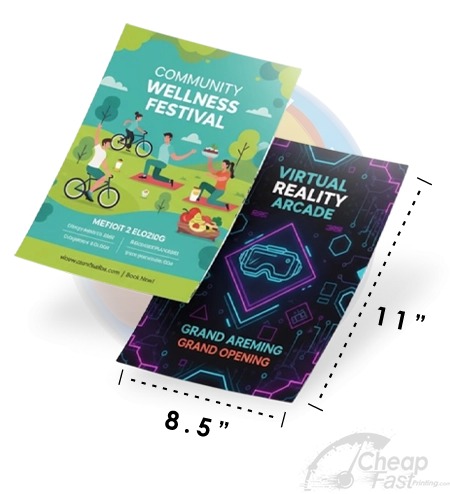
5x11 5x7 4x6 Infographic Hand Holding 4x6 Vertical

Top 10 Microsoft Word Flyer Printing FAQs

Q1How do I create a flyer in Microsoft Word?
Open Microsoft Word, go to File → New, and search for 'flyer' in the template search bar. Select a template and customize it with your own text, colors, and images. Work at 8.5×11 page size with reduced margins.
Q2What page size should I set in Word for flyer printing?
Go to Layout → Size and select Letter (8.5×11 inches) for standard flyers. Set all margins to 0 if you want full-bleed design, though Word has limited full-bleed support on home printers.
Q3How do I export a Word flyer as a PDF for professional printing?
In Microsoft Word, go to File → Save As → PDF format. In the Save dialog, click 'Options' and select 'High quality print' mode. This produces a 300 DPI-equivalent PDF suitable for most professional printers.
Q4Can Microsoft Word produce print-ready files for professional flyer printing?
Word can produce acceptable PDFs for professional printing at small quantities, but it lacks native CMYK conversion, bleed configuration, and color profile tools that professional design software includes.
Q5What is the biggest limitation of designing a flyer in Microsoft Word?
Word's primary limitation for print design is its inability to configure proper bleed margins. Without bleed, printed flyers will have visible white edges after cutting. Our Free Design team can add this bleed zone.
Q6How do I make a flyer fill the entire page in Microsoft Word?
Go to Layout → Margins → Custom and set all margins to 0. Insert a background image or shape sized to the full page and set wrap to 'Behind Text.' Note home printers often cannot print within 0.25 inches of the page edge.
Q7What fonts print best for flyers designed in Microsoft Word?
Stick to system fonts like Arial, Helvetica, Calibri, or Garamond for headlines and ensure body text is no smaller than 10pt. Avoid script fonts below 14pt — they become illegible at small sizes.
Q8Can I add images to a Microsoft Word flyer without quality loss?
Yes, but only with 300 DPI source images. Go to File → Options → Advanced → Image Size and Quality and enable 'Do not compress images in file' before inserting photos.
Q9How many flyers per page can I print in Microsoft Word?
Microsoft Word allows printing multiple pages per sheet via File → Print → Pages Per Sheet. Select 2, 4, or more flyers on a single sheet for quarter-sheet or postcard-sized formats.
Q10Is Microsoft Word a good tool for professional marketing flyers?
Word is adequate for internal communications and simple event flyers but falls short for professional marketing campaigns. Canva (free), Adobe Express (free), or our Free Graphic Design Setup deliver significantly more polished results.
🔒 Secured by 256-Bit SSL | Data Protection Guaranteed | 10,000+ Happy Customers | A+ Rating