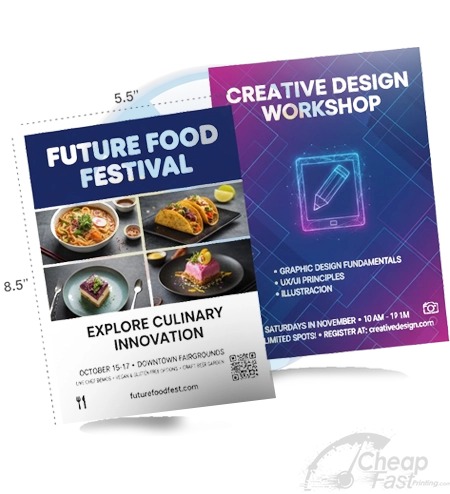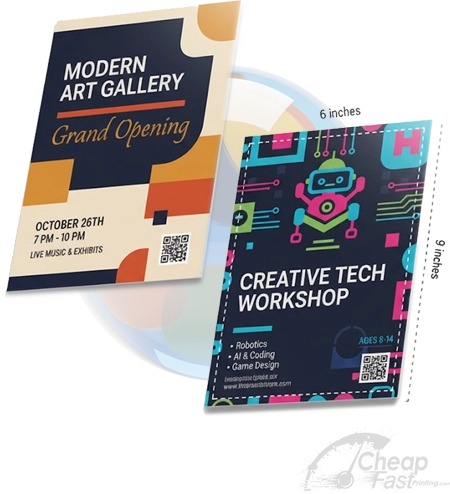


Printing flyers at home or office is a trade: you gain speed and control, but you take responsibility for quality consistency. The best printer choice is not only about “best print quality.” It is about repeatability on your flyer paper and the ability to keep QR and essential content readable after trimming.
This guide helps you pick a printer based on the reality of flyer work: paper feed behavior, driver margins, color stability, and consumables cost. We also include two interactive tools so you can plan a run and reduce risk before you burn ink/toner on a full batch.
For flyer printers, the KPI is: can the reader scan the QR and read the CTA without squinting after stacking, drying, and handling.
Printer Types: How They Differ for Flyer Work
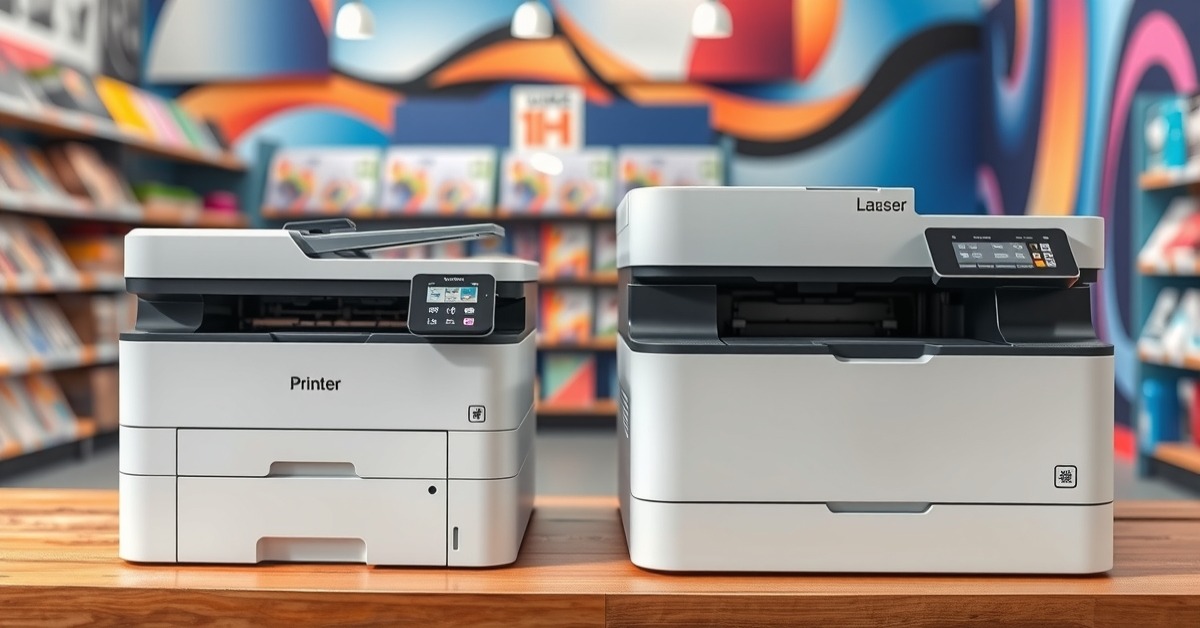
Inkjet and laser are not interchangeable for flyers. They differ in color behavior, drying time, and how consistent they feel across runs. The best way to choose is to match your flyer type to the printer’s strengths.
Pigment inkjet for photo-heavy flyers
- Strength: crisp text and good photo detail when using compatible media settings.
- Watch out: ink needs time to dry; stacking too fast can cause smudging.
- Best use: flyers where visuals and gradients matter most.
Color laser for text and fast repeatability
- Strength: stable solids and fast drying behavior due to toner fusing.
- Watch out: gradients can look less smooth on certain paper/media combinations.
- Best use: flyer work where clarity and consistent typography are key.
Office MFPs (multi-function) for real throughput
Most offices print flyers as part of a wider document workflow. Multi-function printers can be great if they offer reliable paper feeding, consistent margin control, and stable driver settings. The “best” MFP is the one that rarely jams and preserves your safe-zone formatting.
Paper Handling: The Quality Multiplier
Paper handling is where many printer purchases disappoint. A printer might print great on plain paper but fail when you add coated flyer stock or thicker cardstock.
What to validate before you commit
- Maximum supported paper weight and whether it truly feeds smoothly.
- Tray capacity so you can run bulk without constant reloading.
- Consistency across batches (same settings produce the same output).
- Paper type modes (plain vs photo vs matte) that control ink/toner density.
Why paper affects QR scanning
QR codes depend on sharp edge fidelity. Paper texture and coating affect how ink lands and how crisp the modules look after printing. If paper absorbs or reflects ink differently, the same QR size can become harder to scan.
If your flyer will be read at a phone camera distance, test QR scanning on the exact paper stock you will actually use.
Duplex Accuracy and Edge Safety
If your flyer has two sides, duplex alignment matters. Misalignment can move essential content closer to trim edges, which can clip QR codes or hide important phone digits.
Duplex checklist
- Print one test sheet duplex.
- Verify that QR and CTA elements land in the intended safe zone on both sides.
- Check whether the back side has different density or contrast (paper can behave differently on the second pass).
- Confirm that your QR CTA remains readable after drying/fusing.
Office printer checklist for flyer work
Office printers are often optimized for documents, not for conversion flyers. Before you commit to a full run, confirm the printer supports the behaviors your flyer needs: accurate margins, stable paper feed, and consistent color/contrast around the CTA and QR zone.
- Border/full-bleed control: confirm how your driver handles edge artwork (does it keep full-bleed or introduce a hidden margin?).
- Margin behavior: ensure that “fit to page” or automatic scaling is disabled for flyer templates. Scaling is a common cause of clipped QR codes.
- Tray/media matching: use the tray and media type that match your paper stock (plain vs coated vs photo). The printer changes toner/ink density based on this setting.
- Repeatability: if you reorder, do the first 10 pages of the new run match the first run? If not, your settings are drifting.
- Duplex edge effects: confirm the back side does not shift critical text closer to edges or reduce contrast for small QR text/CTA lines.
- Resolution mode: select the highest print quality mode available if your flyer includes fine text, thin borders, or dense graphics.
- Color consistency: run a short test on your exact flyer file and compare key tones (brand colors, dark backgrounds) between batches.
How to do a “2-stage test” before scaling
A small office test run should reduce reprints and wasted paper. Use a two-stage approach:
- Stage 1 (one sheet / one duplex pass): verify safe-zone protection, QR scannability, and whether the printer driver is introducing unintended scaling.
- Stage 2 (small batch): print a short batch (for example 20-50 flyers) to validate feed stability and consistency across the batch. Check for jams, curl, or QR edge softness.
If either stage fails, fix the underlying file/setup issue (media settings, margins, QR quiet zone) before increasing quantity. This is how you keep office printing “cost-safe” and avoid expensive reprints.
If your QR fails specifically, do not immediately assume the design size is wrong. Office printer scaling can change module proportions, and border/margin automation can move the QR closer to the trim edge. Re-check that the printer is using the correct paper size, that scaling is set to 100% (or “no scaling” where available), and that the QR has enough quiet zone padding. Then run one more single-sheet proof before you print your small batch.
For duplex flyers, treat the back side as its own quality check. Toner fusion or ink behavior can differ on the second pass, which can slightly change contrast and make small QR text harder to read. After the duplex proof, scan the QR on the back and verify the CTA block is still inside the safe zone. If it is drifting, update duplex alignment settings before scaling up.
Also note your exact driver media type, quality mode, and any border/scaling options. If you repeat the run later with different driver settings, your flyers can look “random” even when the design file is unchanged.
Interactive: Throughput + Cost Planner
This tool helps you estimate how long a run might take and provides a rough consumables plan. Treat it as planning support, not an accounting tool.
Interactive: Paper Handling Risk Estimator
This tool outputs what to validate if you plan to use thicker coated paper or if duplex is required.
Test Strategy: One sheet can save a run
Office prints get expensive when you skip testing. A single test sheet can reveal safe-zone failures, color profile mismatches, and paper feeding problems before you print thousands.
What to check on the first test
- Does the headline read clearly at arm”s length?
- Can you scan the QR code in your real lighting?
- Does the CTA remain readable next to color/photo areas?
- Do you see banding or washed-out gradients?
- For duplex: is alignment correct on the back side?
Lock settings after testing
After your test passes, lock your printer settings and keep your media type selection consistent. Changes that seem minor (like switching “plain” vs “photo” paper mode) can change ink density and make a second batch look inconsistent.
Browse 6 Flyer Format Picks
These allocated products for post 45 are good comparisons for how different paper stocks feel and perform. Use them to plan what your printer should support.